EULVIC 2026
Friday 23 October 2026 · Innsbruck, Austria
On this page, you´ll find direct access to the Case Collections for each case-based workshop. Before the workshop, please review the "How to use the platform" section below.

Links to Workshop Cases
Friday, October 23rd
| Location and Workshop | Speakers | Link to cases |
|
MRI in PMR |
Tommaso Buzzegoli |
Click here ▶️ |
| PET in LVV | Lars Christian Gormsen | Click here ▶️ |
|
MRI in LVV
|
Thorsten Bley | Click here ▶️ |
|
CT in LVV
|
Thorsten Bley | Click here ▶️ |
How to use the platform
Checklist ✅
- 🌐 Use Google Chrome as your browser.
- 💻 🖥️ Access via a laptop or Computer with a mouse 🖱️ for the best experience.
-
📱 ⚠️ Smartphones and tablets are not supported.
- ⚙️ Close unnecessary apps, browser tabs, and background programs to maximise performance.
- View one workshop at a time. Close other tabs.
- 🛜 Ensure a stable Wi-Fi internet connection (70 Mbps or higher).
-
Test internet speed - 🛜⬇️ here
⚠️ Disclaimer: Loading times may be affected by local Wi-Fi speed and network stability.

Access the Cases
- Click on a session link above - access will be available from the start date of the workshop.
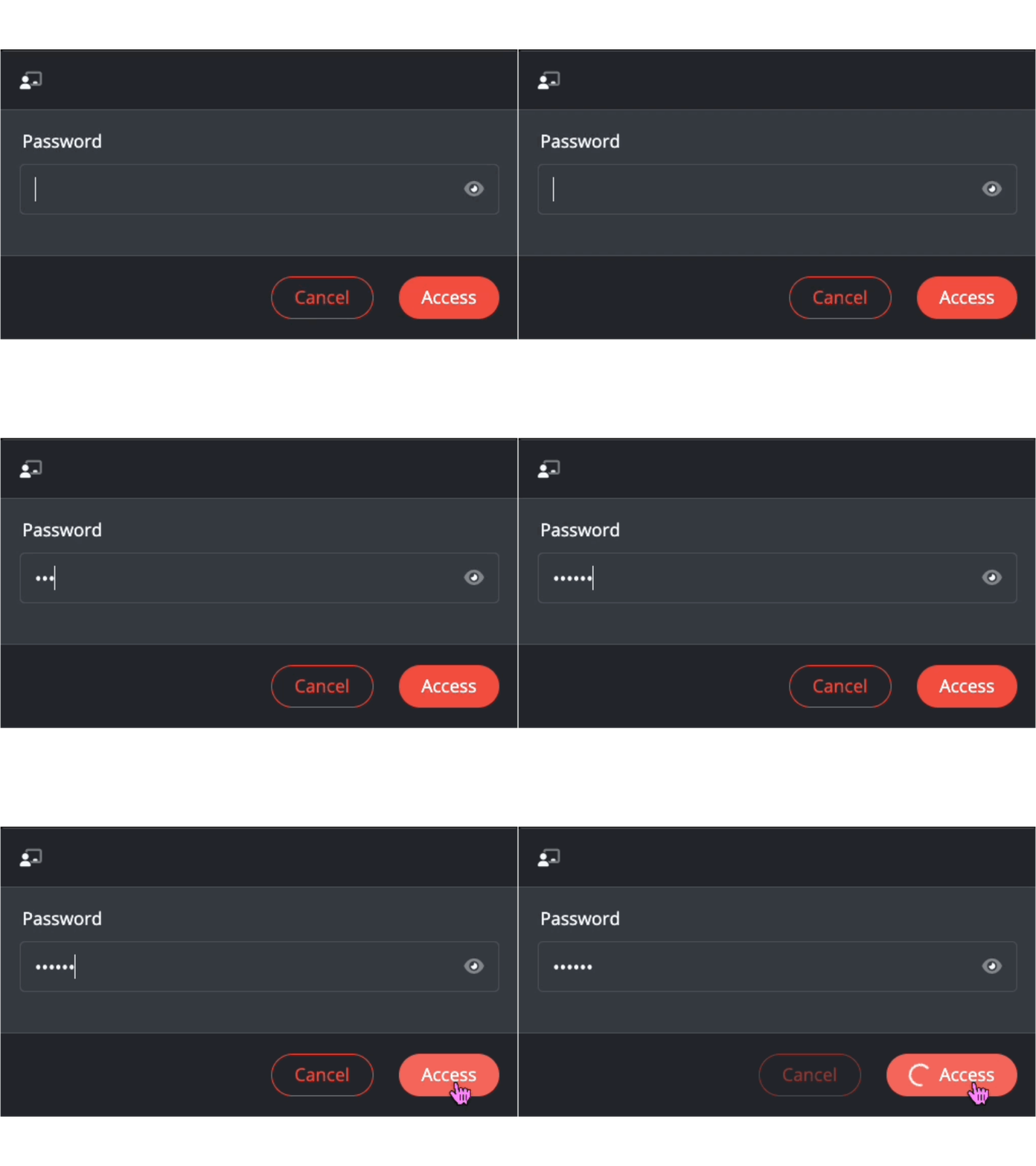
- Links may be password-protected after the event - the faculty will provide the required password.
- Open only 1 session at a time.
- Close all other open tabs in the browser
Navigating the Workshop Cases
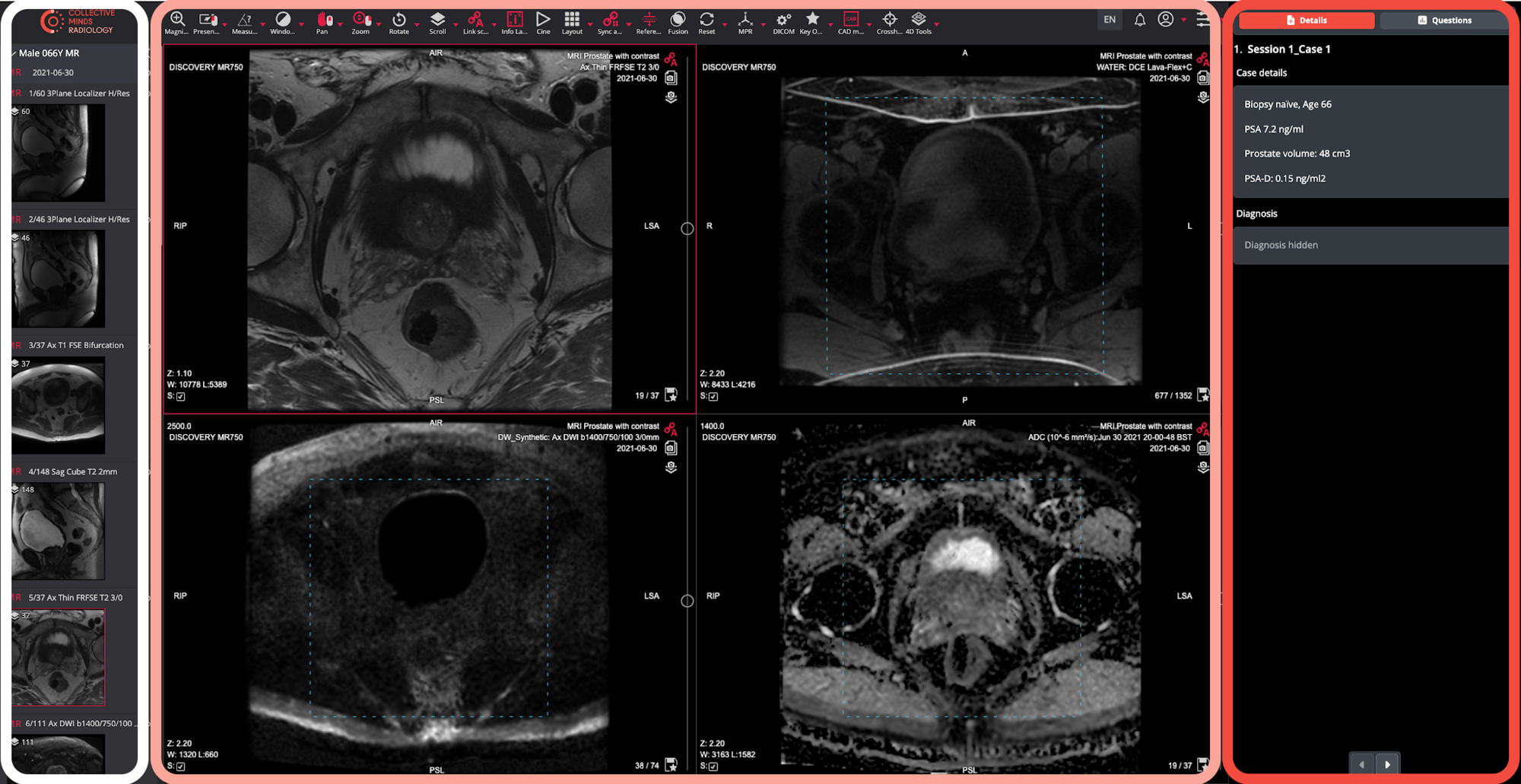
The workshop link will take you to a case collection, also called a Seminar. In the seminar, you will find the following components:
- Left hand side: Key images of the study series. To view a series, drag it into the DICOM view port.
- Middle: DICOM viewer and toolbar.
- Right hand side: Case details and hidden diagnosis. These fields will be discussed by faculty.
- Use the arrows ◀️▶️ in the bottom right corner to go to the next case.
DICOM-Viewer Tools
Collective Minds utilizes a Clinical Grade DICOM-Viewer equipped with a wide range of tools for case review. The toolbar is located at the top of the DICOM-Viewer and can be assigned to your left, middle, or right mouse button by clicking the tool with the desired button.
Useful Viewer Shortcuts and Tips
- Crosshair Tool: Use to navigate corresponding anatomy across series; helpful for lesion localisation. 2 or more imaging planes must be used.
- Crosshair and other tools may be located via the More options menu on smaller screens.
- Ellipse ROI: Use the Ellipse (Measure > Ellipse, Shift + E ) to measure HU and other values.
- Line: (
Dkey) Use the line tool (Measure > Line) for measuring distance. - Erase (
E): Instantly removes all measurements made. - Auto Windowing (
0): Helpful to adjust suboptimal windows. e.g., ADC maps
⚠️ Disclaimer: Some viewer tools may be limited or unavailable due to prior anonymisation and/or differences in scanner or PACS export configurations. This may affect how certain series are displayed or how viewer tools function
Tips on Preloading
- Preloading stores case data temporarily to enable various tools.
- Preload a series or study by clicking the ☁️⬇️ cloud icon.
- Loading times are affected by series size and local network conditions.
- Preload per series rather than the full study, where possible.
- Preloading is optional as images are always streamed from the cloud.
- Should any message appear in the viewer, try refreshing the browser by advancing to the next case and back, then reloading.
Test internet speed - 🛜 ⬇️ here
⚠️ Disclaimer: Loading times may be affected by local Wi-Fi speed and network stability. Images are delivered from secure AWS servers, and performance is typically fast, but loading times may vary depending on local internet conditions.


Need help?
Contact us at support@cmrad.com or visit our help page for a variety of help articles.
Should you require technical support during the event, please contact ESUR staff on site at the venue.